This postcard, which just went up on eBay last night for $8, could serve as the whole textbook for a pretty good class at Western ...
Showing posts with label Tech Note. Show all posts
Showing posts with label Tech Note. Show all posts
Tuesday, October 6, 2026


Wednesday, November 14, 2018
Tech Note: 'Create New Contact'
Earlier this year, I started saving people's cell numbers on my smart telephone by their contact names, and this has been great! For many years, the only contact I had was my niece, Courtney, and her phone number was stored under "Aaa."
Saturday, October 28, 2017
Twenty Fifth Podcast
The twenty fifth podcast is up. Thanks to freemidi.org for the audio files. Eric and Matthew talk about sports.
RSS Feed
Tuesday, January 17, 2017
Tech Note: AV Protection
Well it's getting to be close to that time of year when the AV Comparatives group puts out their rankings to determine the best AV products on the market. If you are ever in the need to buy some anti-virus software and you want to see some good ratings check these guys out. AV Comparatives is the name of the group. They do tests throughout the year and then put together a summary report at the end of the year.
Wednesday, September 21, 2016
Tech Note: Setting Up a Video Studio

Anyhow I just got through building a video studio and I wanted to capture here how we set it up. What equipment we bought, etc.
I was tasked with the job of turning a small 14' x 17' space with 9' ceilings into a video studio. Having had no experience ever shooting video I reached out to others for advice and read up all I could on the internet. One video I saw on youtube in particular caught my eye. You can check out the video here. What struck me in particular about this video was the setup they had in their studio. In the video they have a dedicated green screen studio. We were not going to have that, but what they also had was a truss in front of their screen to hold their back light and their lighting for their backdrop.
My task was to design a studio space that would be used by faculty, by students, and by our communications director. He's the only one that is a professional at this and so I needed to create a space where we could have all of the lighting we needed in place but people couldn't mess with it. A truss I thought would help with this tremendously. Also as I said we couldn't have a dedicated green screen space, so we needed the ability to change backdrops. With space being a big issue for us I decided to go with paper instead of cloth and use a wall hanging system to help save as much space as possible.
This led then to the first two items we would purchase for our studio. The truss we bought from Trusskits. The kit was very easy to put together and is very sturdy. Next we bought a wall mount kit and paper. We bought a few different colors including the basics of white, black, and tech green.
OK now we had our backdrop and we had our structure for lighting next we needed lights. We had decided that we wanted to go with LED lights. Mostly because of ease of use since this space would be used by such a variety of people and because it was a small space. I found a few products on the market and I came down Dracast or Ikan. Pricing varied a bit and so we ended up with a mix, but I would say this would work fine. For the back lighting and backdrop lighting we went with the Dracast LED500 Pro Bi-Color LED lights. For the key and fill lights I chose the Dracast LED1000 Pro Bi-Color LED light along with a softbox.
OK now we had our lights, our truss, and our backdrop. Next we needed audio and video.
I first looked to audio. I wanted a shotgun microphone setup in place for the students. I also wanted to have lavaliere mics for anyone who wanted to get even tighter sound. For the shotgun mic we went with a Rode NTG1 along with the Rode Blimp Windshield and Rycote Shock Mount. For the lavaliere mics I went with two Shure MX185s. For a mixer I went with a ShureSCM268, though in retrospect I may have preferred to go with the Rolls MX410. The Rolls has both a left and right channel out. I've used one of these Rolls mixers before and like them quite a bit.
Now with the sound figured out it was down to the video. After much hemming and hawing I went with the Blackmagic Design Micro Studio Camera 4K. I also bought a Panasonic Lumix G Vario 14-45mm lens and a DigiPin13 WL1 LANC controller. This last piece is great for our space as you can easily set the talent in front of the camera and then get it focused and opened up the way you want.
OK we had everything now in place to light and shoot video. But we had a few problems still. The echo in the room was terrible and we had no way to capture the video.
We wanted something very simple for video capture and we had a decent computer in place, so we bought a Blackmagic Design DeckLink Studio 4K capture card. I then bought an SSD drive for the computer as a scratch disk. This allows us to capture the video straight to the computer, then the users can simply copy off the files they've created to their portable media and the machine is ready for the next patron.
As for fixing the sound problem in the room we went with a room kit from Primacoustic that was quite easy to install. We also changed out all the ceiling tiles in the room with Primacoustic tiles, that was a pain to install.
OK now everything is in place and working. I've learned a lot on this project and had fun putting it together. Hopefully it will get a lot of use.
Here is a short video I shot just for this entry on the HP. I did not clean up the sound or the video. Does lead me to think I've still got a little echo issue in the room that we have to work out, but all in all not bad for a start. Now the fun small tweaking work begins. Oh boy.
Saturday, March 8, 2014
Tech Note: Upgrade from Sharepoint 2007 to Sharepoint 2013
You can find these steps all over the place on the web, but I put together this list because of the specific issues I ran into when going through this process. Since I wrote up the documentation anyhow, figured I'd share it.
$wa = get-SPWebApplication $WebAppName
$wa.UseClaimsAuthentication = $true
$wa.Update()
We are upgrading
from Sharepoint 2007 to Sharepoint 2013.
Below are the basic steps.
- Bring Sharepoint 2007 server up to the latest patches.
- Download SQL Server 2008 R2 trial version, http://www.microsoft.com/en-us/sqlserver/get-sql-server/try-it.aspx#tab3
- Get the SQL Server 2008 R2 VHD file loaded up on a server, we are using Hyper-V.
- Install Sharepoint 2010 on the SQL Server 2008 R2 trial server. Make sure you select to do a full farm install and not a standalone. The standalone is for development purposes and will install SharePoint on SQL Express.
- Setup SQL 2012 Server
- Setup Sharepoint 2013 Server using SQL 2012 Server for its DB.
- OK now make sure every server is fully patched and ready to go then do the following.
- Go into the Sharepoint 2007 SQL database and make the content database read only. By default the content database is wss_content. By doing this you are making the Sharepoint site read only so that your users can't make anymore changes or add anymore content to the site.
- Now that it is read only Export the content database.
- Now import the content database into your SQL 2008 R2 server. If your table on the old server was wss_content you'll have to rename it when importing it here as there will already be a wss_content database.
- Turn off the read only restriction on the database.
- Now that you have imported the database run the following command in the Sharepoint Management Shell running as Administrator.
Mount-SPContentDatabase “MyDatabase” -DatabaseServer
"MyServer" -WebApplication http://sitename
-Verbose
- When it finishes the site will have been attached to your Sharepoint 2010 server and upgraded.
- Bring up a web browser and confirm that the site has imported properly.
- At this point you will need to check your sites authentication method. In particular is it using Claims Authentication. The commands below will help you test for claims authentication and then upgrade to claims authentication.
$web =
Get-SPWebApplication "http://sitename/"
$web.UseClaimsAuthentication- If it says False then you'll need to upgrade to Claims, do the following.
$wa = get-SPWebApplication $WebAppName
$wa.UseClaimsAuthentication = $true
$wa.Update()
$account =
"sharepointadminaccount"
$account = (New-SPClaimsPrincipal -identity $account -identitytype 1).ToEncodedString()
$wa = get-SPWebApplication $WebAppName
$zp = $wa.ZonePolicies("Default")
$p = $zp.Add($account,"PSPolicy")
$fc=$wa.PolicyRoles.GetSpecialRole("FullControl")
$p.PolicyRoleBindings.Add($fc)
$wa.Update()
$account = (New-SPClaimsPrincipal -identity $account -identitytype 1).ToEncodedString()
$wa = get-SPWebApplication $WebAppName
$zp = $wa.ZonePolicies("Default")
$p = $zp.Add($account,"PSPolicy")
$fc=$wa.PolicyRoles.GetSpecialRole("FullControl")
$p.PolicyRoleBindings.Add($fc)
$wa.Update()
$wa.MigrateUsers($true)
$wa.ProvisionGlobally()
- OK now that you have transitioned the authentication to claims again fire up a browser and check that the site runs OK on Sharepoint 2010.
- Now we repeat the process from before though there is no need to make the database read only as this is not a live site.
- Export the content database
- Now import the content database into your SQL 2012 server.
- Now once again mount the content with the sharepoint site
Mount-SPContentDatabase “MyDatabase” -DatabaseServer
"MyServer" -WebApplication http://sitename
-Verbose
- Now bring up a browser and logon to your new Sharepoint 2013 site, you are done.
Monday, November 18, 2013
Tech Note: A Few Useful Group Policy ADMs
Do you work with Windows and ever have a need to enforce items with group policies that are missing from the official ADMs. Well it is easy enough to make your own, especially for small items. All you need know is where the setting you want to edit lives in the registry and your are good to go. I'm offering up here three such ADMs. I created one of these from scratch, the others are from other places. All you need do is copy and paste the text between the *** into Notepad and save it as filename.adm. These all work with Windows 7.
Group Policy ADM to Enable AutoLogon
**********************************************
CLASS MACHINE
CATEGORY "System"
CATEGORY "Logon"
POLICY "AutoLogon"
EXPLAIN "These settings can be used to allow the system to logon automatically. To enable autologon, set the first two settings (AutoAdminLogon and ForceAutologon) to 1, and then fill in the appropriate account information. Keep in mind that this information will be stored in cleartext in the systems registry."
KEYNAME "SOFTWARE\Microsoft\Windows NT\CurrentVersion\Winlogon"
PART "AutoAdminLogon" NUMERIC REQUIRED TXTCONVERT
VALUENAME "AutoAdminLogon"
MIN 0 MAX 1 DEFAULT "0" SPIN 1
END PART
PART "ForceAutoLogon" NUMERIC REQUIRED TXTCONVERT
VALUENAME "ForceAutoLogon"
MIN 0 MAX 1 DEFAULT "0" SPIN 1
END PART
PART "DefaultUserName" EDITTEXT REQUIRED
VALUENAME "DefaultUserName"
DEFAULT "Username" MAXLEN 128
END PART
PART "DefaultPassword" EDITTEXT REQUIRED
VALUENAME "DefaultPassword"
DEFAULT "Password" MAXLEN 128
END PART
PART "DefaultDomainName" EDITTEXT REQUIRED
VALUENAME "DefaultDomainName"
DEFAULT "Domain" MAXLEN 128
END PART
END POLICY
END CATEGORY
END CATEGORY
***********************************************
Group Policy ADM to Set Text for 3D Screensaver
***********************************************
CLASS USER
CATEGORY "User Environment"
POLICY "Screensaver 3D Text"
KEYNAME "Software\Microsoft\Windows\CurrentVersion\Screensavers\ssText3D"
PART "Display:" Edittext
VALUENAME "DisplayString"
REQUIRED
EXPANDABLETEXT
DEFAULT "What ever you want"
END PART
END POLICY
END CATEGORY
**********************************************
Group Policy ADM to Set Default Printer
For this one you will need to go to a machine that is setup with the printer in question as the default and then look in HKEY_CURRENT_USER\Software\Microsoft\Windows NT\CurrentVersion\Windows\Device for the proper text to enter when setting this policy.
**********************************************
CLASS USER
CATEGORY "User Environment"
POLICY "Set Default Printer"
KEYNAME "Software\Microsoft\Windows NT\CurrentVersion\Windows"
PART "Printer:" Edittext
VALUENAME "Device"
REQUIRED
EXPANDABLETEXT
END PART
END POLICY
END CATEGORY
***********************************************
Monday, August 12, 2013
Tech Note: Can the Failing of Windows 8 Have Been Caused By Arrogance

Lately what I've come to realize is that the buzz I hear over Windows 8 reminds me very much of the buzz I heard around Windows Vista after it had been out about 6 months and so this has lead to me understand that Windows 8 has failed. Once the consumers turn on your product for whatever reason you've lost the battle and have to move forward. Microsoft in many ways is acknowledging this with their big push of Windows 8.1 which is supposed to address the many issues, but the problem is it still doesn't address the biggest issue and so I'm left to wonder if Windows 8 is failing and will ultimately fail completely because of nothing more than human arrogance.
To understand why Windows 8 is failing, perhaps it's best to go back and understand why Vista failed. When Microsoft was developing Vista they had this vision of an operating system that once booted up would pretty much have everything you needed running in memory and ready to go. This meant a much more bloated operating system than Windows XP and so it needed computers that were much more robust than the vast majority of machines publicly available. Microsoft went to their vendors and laid down very high standards on computers that would get the Vista approval. If a machine didn't get Vista approval it would not get the Vista label and thus would be sold with Windows XP. This would assure that the consumer got computers that were specifically designed to handle this much heftier operating system. Problem is, before the release of Vista, Microsoft backed off and allowed Vista to go on any machine anyone wanted it to go on. Almost overnight Vista was labeled as a bloated, slow, and sluggish operating system. It was labeled as such and never lost the label. The very thing that Microsoft feared, happened.
So what does that have to do with Windows 8? In many ways it is a repeat of exactly what happened before. Windows 8 is in essence a dual operating system. There is the desktop mode which we are all familiar with and then there is the touch mode which is the new cutting edge component of Windows 8. Now let's say I want a cheap laptop. I go to Office Depot and I pick up some Acer for $400. It has no touch screen, just a standard old laptop. I get it home and start it up. I'm thrown into the touch interface. I can use the mouse sure but it's awkward and a bit clunky and I find that I spend most of my time working in the desktop environment because that's where a computer like this is most comfortable. Problem is there is no start button in the desktop mode. So if I want to launch an application I have to go back to the touch interface to launch an app that will then open in the desktop interface. It's very awkward. As a consumer I'm now finding myself very frustrated by this. You have essentially added layers of complexity to something I have been doing on my computer and taken for granted for years. Why? Would be my question as a consumer, why would you do this to me? And just as people found Vista bloated and sluggish, they find Windows 8 clunky and awkward. There are now more apps coming out all the time and so you could find yourself spending more time in the touch interface even with a standard laptop, but the initial question still remains why? Why were consumers ever put into a situation where they would find themselves this put out? And now that Windows 8 has this bad reputation how do you restore order?
Well the obvious way to restore order is to simply give people their start button back and make it easier for users who aren't using the touch interface. I love the touch interface for my Asus Windows RT device. It's fast, easy to use, all in all very well designed. I never use the touch interface at my work computer. Why couldn't Microsoft understand or see that their users would be approaching this from different perspectives with different needs. I wrote about this a while back when I envisioned a device that would let me move from work mode, to travel mode very easily. That requires letting me live in desktop when I want to live there and in touch when I want to live there. There are open source products that will alter Windows 8 to give you that control, so it's easy to do, so why not offer it up to consumers and computer manufacturers as a way to make people happy?
My only answer is arrogance. Someone, somewhere at Microsoft is stubbornly standing behind the decision to not include the start button. To force users to always go through the touch interface. Why else would they stand behind something that is so clearly failing them? The tweaks they are making for Windows 8.1 do not resolve this primary issue and so it will not eliminate the disdain the consumer now has for windows 8. It's a shame too. If you were thinking about getting a pad device I would not hesitate to recommend a Windows 8 device. Especially now that they are trying to give them away. At the price point you can't beat what they offer compared to an iPad. But the tide won't turn for Microsoft or their vendors because the consumer despises Windows 8. People at Microsoft can spit at the ignorance of the consumers, but the truth is it is not the ignorance of the consumer that has been the downfall of Windows 8 but the stupidity and arrogance of the people at Microsoft.
I find this to be a very sad story all in all because as I have said before Windows 8 is the greatest operating system ever made, but it is essence a failure.
Monday, May 6, 2013
Tech Note: More on Windows 8

 Back in January I wrote the following on my review of Windows 8, "I have been very tempted to buy a Windows RT device, but I absolutely will not until either Microsoft fixes the browser or allows other browsers to be installed on Windows RT devices." Well within a month of writing that I had indeed bought a Windows RT device. I got the Asus Vivo Tab RT and after having used it for three months I thought it was time to wade back into Windows 8.
Though I have grown accustomed to using the web browser in the Metro interface I still don't like it and think they could easily fix the issues it has with minor changes. It is not intuitive at all as can be seen when watching my wife try to figure it out. Still over time you learn it and it is functional. I recently had an interesting experience with the browser that gave me an idea as to what the Microsoft people were expecting. It came with a new site out there called Vdio. It's done by the same people that do Rdio. Vdio has built their site to look and feel like an app more than a web site, and in the IE 10 Metro interface this web experience is fully immersible and works great. Problem is that's one site out of millions that is made to fit into the Metro experience. The only real complaint I have left about the browser is that if you want to jump around between tabs it is truly a pain and that seems to me something they could easily fix. by giving you options on how you want the browser to be laid out. Still I went on about this last time and I don't want to go down that road again. I want to talk more about what it is like to use Windows 8 RT on a day to day basis. What are the good features of Windows 8? Why I picked the Asus product over others? And what is holding Windows 8 back from competing against the iPad?
Just to note I have not had any opportunity to use an Android device though I used an iPad daily for about 10 months.
The Windows 8 Experience
I can very quickly name the good features of a Windows 8 RT tablet. You can have multiple logins. I login I have my email and files. My wife logs in she has hers. Our three year old logs in and she has access to only what we want to give her access to. This is perhaps the most straightforward feature that instantly for me puts Windows 8 RT ahead of say an iPad. If you have kids and are going to be sharing a device around this is reason enough to choose this device over an iPad. It's a great feature.
Second, oddly, is the web browser. As compared to Safari on an iPad you get a full blown web browser on Windows RT. Which means if I want to go stream live game content through ESPN, no problem. I could not do that on my iPad. If I am working on writing up a blog entry in one tab of the browser and looking up data on another tab I don't have to worry about constantly saving what I've done. Those tabs can be running independent of each other as I toggle between them. Try this on Safari on your iPad and you'll immediately see the problem I'm talking about.
Hardware installation. When I got the device home I had it search our network, it found our printer, and voila I had a printer installed. I can print from Word, Excel, the web, anything just like a computer. Again this was a limitation on my iPad.
It comes with a copy of Word, Excel, and PowerPoint at no added cost. Hop into desktop mode and you have a computer that is ready to do real work. Especially since all Windows 8 RT tablets I've seen are available with a full keyboard with touchpad. It's nice to be able to set it up and use it like a full laptop when you need that functionality.
The Metro interface itself. I have actually grown to like the Metro interface. It's easy to find what you are looking for and some information is simply always in front of you, like the weather forecast, your calendar, etc. There is a reason why people, like HTC with their One phone, are copying this look from Microsoft. It is a fresh look. The only problem with it, is it is a bit tough to organize it exactly how you want it. Still I like the interface. It is much more than just a static holding site for links to apps.
The limit on available apps is one of the obvious problems with Windows 8, and in some cases I've stumbled upon apps that will only work with Windows 8 Pro and not RT. Also their support for VPN is quite limited. Since I can't install say the Cisco VPN client and have to rely on what is built into the system I'm a bit disappointed in the fact that I am unable to connect to my work. If I could then I could literally use this device to replace my laptop completely.
Also Microsoft has made a decision to limit how they sync to certain things like GMail and Yahoo and it makes no sense to me. It limits then the functionality of their built in Mail and Calendar apps and that limits the usability of their product. If staying in constant contact through email and calendaring is vital then an iPad would be a much better pick.
The Asus Vivo Tab RT
When I was shopping around for a tablet to purchase I quickly found that Asus offered something I really wanted, a keyboard with a built in battery. This does two things for the device. First it extends the battery life of the device. More importantly it adds weight to the keyboard which gives the device a nice balanced feel when using it docked. It feels right not top heavy. If you are wanting something that can replace your laptop, this feel is actually quite critical.
Also when I was buying, Asus had a deal going to give you the keyboard free. That was a nice deal. Personally I think they should all just include the keyboard as part of the price since they are so critical to get the full Windows 8 experience.
It has a micro HDMI port, a slot for expanding memory and a USB port. All of these are required on all Windows 8 devices, which I think is smart of Microsoft's part.
All in all I have been very happy with the performance. The battery life is good, the device is stable and I would definitely recommend it over an iPad.
Why Isn't Windows 8 Doing Better?
I think it's a series of issues all mounting together. Some are the shortcomings of Windows 8 itself. The frustrations people have over IE, the poor quality of the Mail and Calendar apps. Some are shortcomings that are out of Microsoft's control. They can't force developers to create apps for instance. The lack of apps available is a bit disappointing if you are use to IOS or Android devices. And some lie with hardware manufacturers. The keyboard with built in battery is almost a must. I had the chance to us a Samsung that does not have a weighted keyboard and it is so top heavy it is quite annoying. Go read the reviews of in Amazon for instance and everyone is griping about the keyboard.
All of these issues can be overcome and I hope they will. As it stands right now I would pick a Windows 8 device over an iPad. I'm not sure about Android since I haven't had a chance to use it.
Wednesday, April 3, 2013
Tech Note: Unique Extension File Upload Fails In WordPress Multisite
 OK I know the title of this article is a mouthful and technical. But I was trying to cover my bases in case someone like me is someday searching for this answer.
I had a problem yesterday that got me a bit confused, and so I thought I would post the solution here for anyone like me.
We are running a WordPress multisite install here at my work and that is actually what makes this problem a little confusing. Yesterday I had a user who was trying to upload some documents to make available to the public which has an unusual file extension. In WordPress multisite, there is an area in Network Admin Dashboard/Network Settings/Upload Settings where an administrator can set the file extensions that are allowed for upload. So I went there and added the file extension in question, but still could not upload the file. This is where multisite and standalone come together. Since it is a unique file extension that had not been established as a mime type for our WordPress install I needed to go into wp-includes/functions.php and add a mime type for the file extension in question. Just open the functions.php file and search for "accepted mime types", then add your file extension and it's mime type into the list.
With the mime type created and the extension added to the acceptable list under Network Settings you will be good to go.
Thursday, March 21, 2013
63 Games to Go
Here are Thursday's games in the 1st Round of the NCAA Tournament (all times Central Daylight Time) (rankings by Ken Pomeroy):
Auburn Hills, Mich.:
11:15 A.M.: # 10 Michigan St. (25-8) v. # 64 Valparaiso (26-7) (CBS)
1:45 P.M.: # 37 Memphis (30-4) v. # 18 St. Mary's of Calif. (28-6) (CBS)
6:15 P.M.: # 11 Michigan (26-7) v. # 102 S. Dakota St. (25-9) (CBS)
8:45 P.M.: # 22 Va. Commonwealth (26-8) v. # 54 Akron (26-6) (CBS)
Lexington, Ky.:
11:40 A.M.: # 53 Butler (26-8) v. # 62 Bucknell (28-5) (truTV)
2:10 P.M.: # 25 Marquette (23-8) v. # 59 Davidson (26-7) (truTV)
5:50 P.M.: # 2 Louisville (29-5) v. # 225 N. Carolina A & T (20-16) (TBS)
8:20 P.M.: # 24 Colorado St. (25-8) v. # 19 Missouri (23-10) (TBS)
Salt Lake City, Utah:
12:40 P.M.: # 7 Pittsburgh (24-8) v. # 32 Wichita St. (26-8) (TBS)
3:10 P.M.: # 4 Gonzaga (31-2) v. # 171 Southern (23-9) (TBS)
6:20 P.M.: # 21 Arizona (25-7) v. # 45 Belmont (26-6) (TNT)
8:50 P.M.: # 17 New Mexico (29-5) v. # 108 Harvard (19-9) (TNT)
San Jose, Calif.:
1:10 P.M.: # 16 Saint Louis (27-6) v. # 80 New Mexico St. (24-10) (TNT)
3:40 P.M.: # 20 Oklahoma St. (24-8) v. # 43 Oregon (26-8) (TNT)
6:27 P.M.: # 34 UNLV (25-9) v. # 60 California (20-11) (truTV)
8:57 P.M.: # 13 Syracuse (26-9) v. # 144 Montana (25-6) (truTV)
Any other observations will go in the comments.
Friday, February 8, 2013
Tech Note: Subscription Software
 The future of software would appear to be subscription based software. This has been deployed successfully by the gaming industry for years, look at games like World of Warcraft for an example. Now we have some major players moving toward a subscription based system for their software. Two examples I want to look at are Microsoft and Adobe.
Let's start by looking at Microsoft's new Office 365. For the new Office they offer two models for purchase. You can buy the software outright on a per computer basis, or you can go with a subscription method. If you want to buy the software outright there are three versions. The Home and Student version comes with Word, Excel, Powerpoint, and EndNote. It will cost you $139.99. The trick with this version is that it is not to be used for commercial purposes. So no work from home, unless your employer is paying for a fully licensed version at work. Very confusing. Let's say you are self employed and you want the software then you would get the Home and Business version for $219.99. It comes with all those listed above plus Outlook. If you need Publisher or Access you would have to go with Professional for $399.99. That is a one time purchase for one computer. Those are similar choices to what Microsoft has been offering, but now they are offering a new subscription option. It comes with all those applications listed above, plus you get 20G of storage on SkyDrive and 60 minutes of Skype calls per month. And you can install it on up to five devices Mac (Mac would get Office 2011) or PC. All of this costs you $9.99 a month or $99.99 a year. Since you are essentially getting the pro version of the software for up to 5 computers you are looking at a value of $1,999.95. You will get updates as part of the subscription. It is in essence a good bargain and for the first time makes Office an affordable option for home users.
Now you might ask, well how is this a good move for Microsoft? The idea of course is to hopefully get more home users at this price point, but it also parallels the moves they are making for corporate customers. For corporate, government, and educational customers they are making a big change. Let's say you run a small law firm. In the past you would need to purchase the Office suite, buy a server, hire an IT guy to setup a mail/file server, etc. Now with Office 365 here is what you will get: Office, Lync, Sharepoints, and Exchange. All handled by Microsoft who will also give you file storage in the cloud and by the way approved by the US government as meeting their security standards for email and data storage. You no longer need your own servers, you no longer need an IT guy and with Lync, Sharepoints, and Exchange you get products that you may have never had before. Lync is a meeting tool that supports text chat, audio chat, video chat, file sharing, white board, etc. Sharepoints is a web based interface that lets you build public web sites as well as internal sites for collaborative work. Exchange is a corporate level email system with full calendar support. They of course are gearing their offerings from small businesses to enterprise customers. Microsoft is not the first to start offering services like this, they are in some ways coming on board late, but when a big company like Microsoft goes all in on offering services through subscription you know the future is here and this is the future.
Adobe is another company that is going all in on the subscription model and again the value seems good. Let's take a quick look at cost. Let's say you need to buy the Adobe Master Suite. That will run you $2,599. You can sign up for their subscription service, which will give you all the Master Suite products, plus some others, plus 100G of storage for $49.99 a month. That is expensive, but it would take 51 months to get to the cost of the one time purchase of $2,599, so it is in essence a good value. Even if you only want Design Standard at $1,299 it would still take 26 months of subscription fees to get there. Where the Adobe model falls a bit flat is if someone only wants one product, like Adobe Pro which is the most common product we buy for people. How Adobe handles that down the road I'm not sure. As I said they have single product subscriptions but only for certain products. They also offer educational pricing and it is reasonable at $19.99 a month.
Adobe has been very open at saying they are not sure exactly how their different purchasing options will look in a few years, but they have said they will be offering some products exclusive to the subscription versions of the software. The push is on to move people to a subscription model.
The IT world right now is going through a major shift in many ways, but it would appear that moving forward our software will more than often be something we subscribe to rather than something we purchase outright.
Tuesday, January 8, 2013
Tech Note: Why Windows 8 Fails
 What is the most commonly used application on your computer or tablet? Chances are it is the web browser. We all have our favorites and we all know what we want out of a browser. The Metro version of IE 10 which is the only browser available on Windows RT and is the default browser in Windows 8 Pro, is quite simply the worst web browser ever made. You hear people gripe about the Safari browser on the iPad, but it would rate as one of the best browsers ever made when compared to IE 10 Metro in Windows 8.
I don't think I would have ever believed that anyone could build such a bad browser that it could actually hurt the product line, but Microsoft has. I have been very tempted to buy a Windows RT device, but I absolutely will not until either Microsoft fixes the browser or allows other browsers to be installed on Windows RT devices.
Why is it so bad you ask? The developers of the browser put form way ahead of function. They decided that in a tablet environment what you need from a web browser is a browser that gives as much landscape as possible to the web pages. In theory this makes some sense. You have a much smaller screen and so if you can tuck away all the bars and tabs and everything it should make it easier to read text off full web sites, etc. Problem is when you bury the functionality completely, as they have done with IE 10 Metro, the browser becomes a clunky, hard to use, and unfriendly piece of software for much of a users everyday life. Take me for instance. As I type this I have six tabs open. One for another web site of mine, one for a web based game I play, this blog entry, a tab for Microsoft where I got the picture at the top of this page, and two tabs of different stuff on the Heath Post. If I want to jump to one of the other tabs for some reason I simply click on the tab at the top, I'm there I do my work and boom I click right back to get here.
This is not the case in IE 10 Metro. First off in IE 10 Metro I would not be able to sit here and look at the top of my screen as I type and tell you the tabs I have open. In order to see the tabs I have open I would have to right click on the screen or swipe down. Then I could choose my tab, get what I wanted, then swipe or right click to get back to the other tab. It sounds like very little effort, but believe me adding in an extra swipe or click feels very burdensome, when you know how easy it should be.
Another example is my web based sports game I play. That game loves to launch other tabs. Want to see a particular players ratings, click on his name it will pop up another tab, you can read what you want then X it out. Well that is in IE 10 desktop. But not IE 10 Metro. In Metro you would click on his name and it would pop up another tab, it would display it to you at the top of the screen. Trick is it would not become your current tab and before you can touch it or click it it disapears on you. Now I've already done one click or tap to launch the players info. Now again I have to swipe, etc. Anyhow you get the picture. The browser is non-functional with how we all expect a browser to work.
To my mind Microsoft has made the same mistake on their Windows phone with IE, but at least there you can download alternatives and find something that works to your expectations.
I have been using Windows 8 as my primary computer at work now for just over two months. It is stable, it is quick, and in most every way it is a very good operating system, but IE 10 is so bad that I could not recommend anyone buy a Windows RT device where you are so limited because I know from user experience just how bad the IE 10 Metro browser is.
It is very hard for me to fathom that Microsoft put out this browser as is. I hope that Microsoft fixes this sooner rather than later, and I would very much like to see them allow other browsers.
It may seem like a simple thing, but again think about how much you use a web browser and how you use your browser and I think you'll understand why something so simple could cause so many problems.
Friday, October 26, 2012
Tech Note: Early Impressions of Windows 8
 I saw a headline the other day that claimed Windows 8 is the best operating system ever made. This may very well be true, but that doesn't mean it is for everyone or that it is even very good. Let me explain.
If you go read the history of Microsoft at The History of Computing Project web site, what you will find is a company who time and again put open and backwards compatibility at the fore. This is what pushed Microsoft to the front of the OS world and got them such a large portion of the market place. That is what will keep them on top of the enterprise market at least for a while longer as we begin to slowly shift back to a terminal oriented workplace, and that is also what makes the new Windows 8 a clunky sort of operating system.
I've been using Windows 8 Enterprise on my work computer now for a couple of weeks and for this experience it provides no added functionality. I spend 90% of my time in the desktop environment and find going back to the Metro interface to be quite annoying and time consuming.
Problem is Microsoft is in a tough spot. They need an OS that can compete with iOS and Android, but because of their obsession with making everything backwards compatible and open they needed to keep a Windows desktop component in order to run applications written for DOS and file systems running Novell 3. Blending these two needs is quite tough but Microsoft has pulled it off amazingly well and this is why it is the best OS ever made. I have no doubt of that. It can do everything you would want from an OS. It can be a touch friendly interface when you want a pad device and it can be a hardcore workstation when you want to run statistical analysis. There is no other OS that can match that.
There are problems though that have to be addressed. Currently the level of application support for the Metro (or touch) mode of Windows 8 is quite weak. This means that if you get a Windows RT device instead of an iPad you will be waiting a bit for applications to hit the marketplace and so limited in what you can do. This also means if you are buying a hybrid device to replace your laptop you will be spending a good bit of your time in the desktop environment and for many this back and forth transition from Metro to desktop can be quite confusing. For instance I couldn't see getting my wife a Windows 8 device at this point. It would just confuse her and frustrate her.
I think Microsoft understands all of this and that is why enterprise customers will be able to buy machines with Windows 7 for at least a couple more years and also why Microsoft decided to push hardware manufacturers forward by releasing their own devices. Once a rich base of applications are in place and you can live most of your life in the Metro environment they can slowly clear out the desktop mode and even remove it completely from the Windows RT devices.
One quick note as to why Windows RT instantly makes this a good competitor to the iPad running iOS. It does true multi-tasking. You can install printers, plug in USB storage devices, and run IE with flash in the desktop environment. It also comes with Word, Excel, and Powerpoint for free. And it allows for multiple user accounts. This means you can have a login that is separate from your kids. So they can have their games but not accidentally send an email to your coworkers.
I don't see any reason to go into details about how the OS works or how the included apps, like Mail, work. They are fine but need tuning to make them better, just like any early version of an application. The main thing to understand is that Windows 8 is trying to be everything for everyone and that is very tough to pull off. It can make the experience a bit confusing at times and frustrating at times. But it is extremely stable as a desktop OS and quite fast. I wouldn't recommend people run out and buy it, but if you are looking to buy an iPad type device I would seriously consider one with Windows 8. It may have limited applications right now, but it's potential far outweighs anything the iPad can offer.
Tuesday, October 9, 2012
Fun-1986: 'First type in the program below.'
Kid, in 1986: "Mom, I'm bored."
Responsible mom: "Well, why don't you check out the A World of Things To Do volume of the Books for World Explorers that we just got in from the National Geographic Society?"

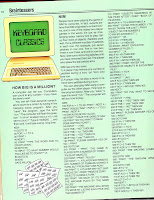


Responsible mom: "Well, why don't you check out the A World of Things To Do volume of the Books for World Explorers that we just got in from the National Geographic Society?"


Thursday, September 13, 2012
Tech Note: Moving Apple Files From One Network Share to Another

If you're strictly a PC user you may wonder, how can you lose file associations when copying files? Does the .doc disappear. Well in some cases, and especially in older versions of Mac software, applications on the Mac don't save an .extension onto a file. Quark for instance would save the file as simply "A Quark File" with no .qxd. This means when you copy a file from one place to another it is possible to lose the associations and that's what happened before and that's what happened to me again.
I started by trying to think of the best way to copy this large amount of data from one server to another and decided to mount the Mac server, connect via AFP to the new server and use the command line rsync -va to make the copy. This was a fast nice way to make the move and I could even do it a bit ahead of time and then run it again one final time after shutting down the old share as the -a means archive which then does an incremental copy. This means it only copies the files that have changed. The biggest issue I had read about with rsync was that it couldn't maintain the permissions, but I was OK with that. What I did not realize until I began testing was that it lost all association information for files with no .extension.
A bit more digging and I found that rsync had another switch -E which tells it to copy the extended data for each file. This includes the meta data associated with files to determine it's file association. OK sounds great so I ran rsync -vaE this time from the server but again no file association got copied.
Now I was feeling a bit lost. Then I discovered something useful. The extended data for a file, like the Quark file we talked about, is actually interpreted and cached at the computer level. So if you are copying a quark file from a machine that doesn't have Quark installed, well that machine cannot interpret the extended data for a Quark file and so it has no way of copying the extended data for that file. That means that if you want to move data like this you are best to do it from a machine that has all the software installed that you may need for interpreting a files extended data.
So then I went back to a workstation and did the same rsync -vaE from one share to the next and it worked. Sad thing is for the older files, like old Pagemaker files, all that extended data has been long lost. It was lost on the last move and would be lost again as we have no machines now running Pagemaker that I could use to copy those files. All this would be avoided if the files had their proper .extensions, but hey I can't go back 10 years and tell people to save their data differently and so that information is simply lost in time.
Hope this saves someone some time.
Saturday, March 24, 2012
Wednesday, March 14, 2012
Tech Note: Windows 8

From what I've seen so far I think Windows 8 will be all about the hardware. The software is there. The OS is stable and works as advertised, but you will need a good bit of memory and some fast processing speeds to make it work the way people want it to. On top of that we'll all want the battery life that we are use to in an iPad. That's a tough order I would think, but I do believe the capabilities are out there. Let me explain how I see Windows 8 working and why I believe it can compete with the iPad.
Imagine getting up in the morning when the alarm on your Windows 8 pad wakes you up. You grab your pad and go downstairs. With some flip back cover similar to the ones for iPads you setup your pad and while eating catch up on the news, watch NBA highlights, etc all with the touch of your finger. You get dressed and hop on the train for your ride into work. You browse through your work emails to get ready for the day and look over some work documents. When you get to work you dock your Windows 8 pad and it gives you a full keyboard, mouse and dual monitors. You move out of the touch environment and into the desktop environment which looks exactly like Windows 7.
There you stay doing your work. At lunch you undock your device and head out to for a break. You sit down and watch an episode of Adam-12 using the touch interface and your Hulu app, then head back to work where you redock. At 2pm you head to a meeting. You undock and head down to the conference room. There you plug in to the overhead through your HDMI connection and using the Metro (app like) version of Powerpoint give a presentation. A coworker wants you to take a look at some documents they have stored on the network share. You connect to the network drive and open up the file with your Metro version of Word. You save a copy down to your device and work through some edits.
You head back to your desk, redock and finish up your day, putting the updated Word document back on the file share at the end of the day. You have a flight the next day so you print out your boarding pass on the company networked laser printer, download some documents you want to work on and put a copy of some stuff you'll need on a thumb drive for a backup. You undock and head home.
Once you're home your wife grabs your pad to take some quick video of the kids and then post them up to Facebook. After everyone has headed off to bed you put your pad into a portable dock with a touchpad and keyboard and do a little work to prepare for the next day, printing off some stuff you need on the home USB printer. Then you undock it and head upstairs where you and your wife can't decide between the next episode in your X-Files marathon on Netflix or watching the NCAA tournament.
Microsoft has built an operating system to let you live this life with a single device. The question is whether or not the hardware will exist to give you this life. How much would you pay for this hardware? How quickly would you throw your iPad out the window to get something that would let you walk through your day doing everything you need and want to do? If Microsoft can work with their partners to bring this vision to life it will not just follow the iPad, I believe it will be the true first step toward what our future will be. If the hardware isn't their to make it competitive to current laptops and iPad combinations, then it will flop.
Just a quick note. I've been running Windows 8 on an older computer with 1G RAM and a Pentium D processor. It has performed as well and as stable as Windows 7. This gives me hope to think that this OS will be even more stable and robust once it moves into production. One decision I would like to see Microsoft rethink is the decision to pull the Start button from the Desktop mode. From what I've experienced when I'm working I really only want to be in the desktop mode. Over time as all the apps we use on a daily basis move into the Metro world I can see abandoning the Desktop environment, but for now I think it is the best environment for doing actual work.
Software Review: Who Has the Best Web Browser

It was during the reign of Firefox 7 that I realized I must abandon Firefox and find a new web browser. But instead of picking one I picked five browsers, deciding I would use a different one each day of the week. Now after months I'm ready to write down my thoughts on each browser. I didn't conduct any speed tests or security tests, these will simply be my thoughts on the experiences I've had using the browsers over the past months.
These browsers were all run on a Dell Precision T1600 with an Intel i3-2100 3.10GHz processor, 4GB RAM, and an on-board Intel graphics card running Windows 7 SP1, 64bit. I have a gig connection to the university network, so network speeds are no issue. I will list these in the order in which I use them during the week Monday to Friday. These are all standard installs of the browser with just a minimal set of plugins, like Flash, running.
Internet Explorer 9
When I first started running all of these browsers I decided to make notes anytime I ran into a site that didn't load properly or anytime the browser crashed. For the first month in which I kept track of such things IE was the only browser which never crashed. In terms of application stability it has proven over time to be the best. I like the interface for IE and I find it to be fast to load sites and get on with the work.
However, there are two major problems with IE 9. There are a number of pages with which I have run into issues. Either the page doesn't load properly, or there is a problem with forms, or more commonly there is a problem with handling HTML5 code, especially video. IE 9 does provide a compatibility mode to overcome sites that don't load, and for the most part that works, but still it's a step that I feel I should never have to undertake. The biggest problem though is the HTML5 problem. I myself ran into this issue when developing my own HTML5 code and I've seen it across multiple sites.
So IE is fast and stable, but you will run into web sites and pages that simply will not work properly. I give it 3 out of 5 stars.
Firefox
Once Firefox 8 hit the market this browser went back to being more like its old self. You will never meet a site it doesn't like, unless that site was specifically designed to only work in another browser. And it is now stable again. I don't believe since 8 came out, and they are now up to 11, that I have had Firefox crash.
The biggest problem with Firefox however is its sluggishness. It's as if 7 wounded Firefox in a way that it has never full recovered from. Everything will seem fine all day and then you'll hit a spell where it is slow to load a page, slow to get the next page, etc. I don't know what's changed, but Firefox is no longer the browser it was for such a long time. Also because of such a bad experience I find myself worried each time they push out the latest version that it will return to being a dog.
As it stands Firefox is again a solid browser. I wonder sometimes how many users they lost because of version 7. The best feature of Firefox has always been that it works with any page out there, it's just that now it seems to run like a wounded animal. I give it 3 out of 5 stars.
Opera
For whatever reason I've always liked Opera. It runs light and quick and doesn't seem to bog down the machine it's running on. All of these things I love about Opera, but there are some big problems with Opera.
All too often you will hit web sites that simply don't work right in Opera. I've run into problems with sites like Blogger and purchase sites like Dell. But there are many others I've run into where it just doesn't display properly or pieces don't work. I can go to the same site in another browser and have no problems. The other problem is that at least once a day Opera crashes on me. There is no pattern to it, it just happens. And in those moments it seems a bit fragile to me.
I'm an Opera fan and I like using it on Wednesdays, but I'm pretty sure that I won't make it through the day without having to turn to another browser at some point, and I'm pretty sure something will bring it to its knees before the day is over. I give it 2 out of 5 stars.
Chrome
I'm not a Google fan, I should get that out in the open, but these days Chrome has become the browser I recommend to people who want an alternative to IE. Though it will crash on me at least once a day and some sites are painfully slow, it works. Like Firefox it can load any page you want it to load and for the most part it will do it quicker than Firefox. In fact I don't have a lot to say bad about Chrome in part because it does what it's suppose to do.
All that being said like the other browsers it has problems. The biggest problem is that it is painfully slow for certain sites, like WhatIfSports for instance. When I want to manage my Soccer team at WhatIf, I have learned to bring up another browser for the job. On Chrome it will just be too too slow. Chrome also doesn't work all that well with Yahoo mail. At least once a day I have to close Chrome just to come back and get Yahoo working properly again. It's the only browser where I consistently have that problem.
All in all if you want to move away from IE, I think Chrome is the logical choice. I really can't recommend Firefox now that they've had a version 7 and so far Chrome has avoided that one bad version. I give it 3 out of 5 stars.
Safari
I don't understand why Apple makes Safari for PC. As good a browser as it is on a Mac, it's that bad on Windows. It's slow, it slows down your machine, it can't load half the pages you go to without problems, quite simply it's just a bad browser. I can't really say anything good about Safari and so I'll just leave it at that. Fridays are always the worst day of the week when it comes to browsers. I give it 0 out of 5 stars.
So to conclude I would say go with either IE, Firefox, or Chrome. If you just want one browser I would probably point to Firefox. Even with its troubles it is a good browser that will just have a few hiccups throughout the day. I would recommend Chrome, but there are too many sites for me where Chrome is just a dog. And IE, well there are too many sites that simply won't load properly on IE. Personally I've become more of a two browser person at home between IE and Chrome. I like the speed that I get with IE and I turn to Chrome for those sites that don't load properly in IE. I just can't bring myself to go back to Firefox and trust that it will remain stable over time.
Monday, February 20, 2012
Happy Chandler Attends a UK Game
This week in 1962, Sports Illustrated did a feature story on the Kentucky Wildcats, who surprised everyone in the 1961-62 season by jumping out to a 17-1 start. The article begins with a great description of why the fans in Lexington are often not as exuberant as those of us from the provinces think they should be:
For at least 487 years -- or so it seems -- canny, cantankerous and superb old Adolph Rupp has been coaching University of Kentucky basketball teams to conference titles and national championships. Rupp has become a Kentucky institution, winning has become a Kentucky tradition, and around the bluegrass and university town of Lexington there has developed a tendency to appreciate Adolph's teams without being so gauche as to get ecstatic about them.
But the article goes on to explain that not all UK fans remain so calm. Here is how SI describes the behavior of Happy Chandler, the Commonwealth's two-time governor:
Chandler, meanwhile, is Adolph's lieutenant coach. He is in his first-row seat at every game, and his cheering is so loud and pointed that a referee once stopped a game, walked all the way around the press table, handed Happy his whistle and said something like, "Here, Governor, use it yourself awhile." Coaches who perpetually stagger out of Lexington in defeat -- Rupp has lost only 12 home games in 20 years -- always recall the band's blaring swing version of Dixie and that second-loudest thing, Happy Chandler.
Subscribe to:
Posts (Atom)